Published: June 30, 2026. This is an advanced guide intended for users comfortable with custom firmware installation. Always research device-specific compatibility before flashing. This guide assumes legally obtained game files, firmware, and keys from your own Nintendo Switch hardware throughout.
What Is GammaOS and Why Would You Use It?
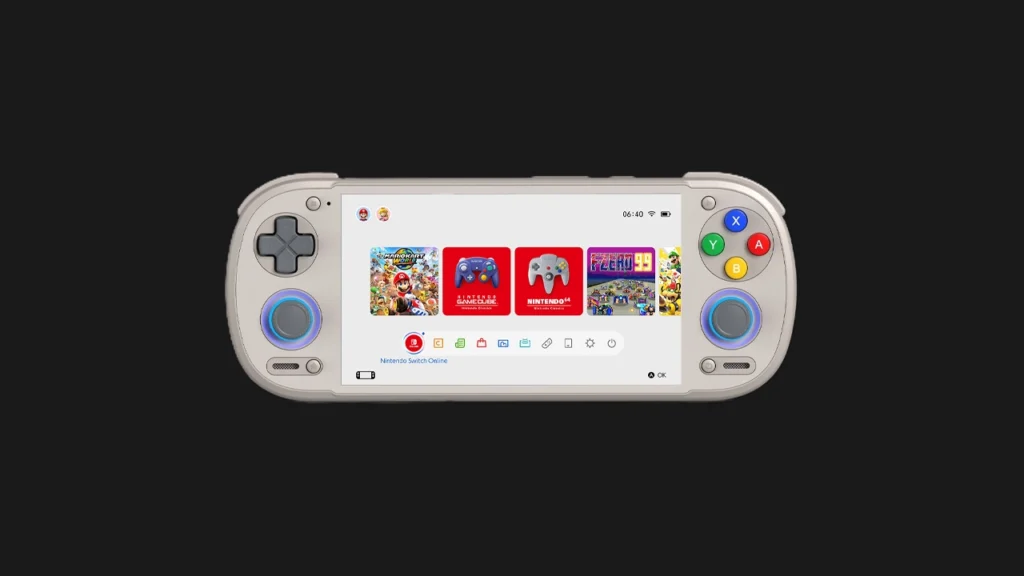
Most Android emulation handhelds — Retroid Pocket 6, Anbernic RG556, RG406H — ship with stock Android (typically Android 13 or 14) and a manufacturer-customised launcher. GammaOS, built on the LineageOS foundation, is a community-developed custom firmware alternative that strips away manufacturer bloatware and replaces it with a leaner, emulation-optimised Android experience.
For users who find their handheld’s stock Android experience cluttered with manufacturer apps they don’t need, or who want finer control over system-level settings that affect emulation performance (CPU governor profiles, thermal management curves, background process management), GammaOS represents a meaningful alternative path.
Which Devices Support GammaOS?
GammaOS Next, maintained by community developer TheGammaSqueeze, currently supports a specific range of Anbernic devices, documented on the project’s official GitHub wiki. Confirmed compatible devices as of mid-2026 include the Anbernic RG556, RG-Cube, RG406H, and RG406V. Compatibility is device-specific — always verify your exact model and hardware revision against the current compatibility list before attempting installation, as flashing incompatible firmware can render a device unusable.
What Changes With GammaOS vs Stock Android
The core Android emulation experience — installing Eden, Citron, or Kenji-NX, configuring graphics settings, adding your legally obtained Switch firmware and keys — works identically on GammaOS as on stock Android, since these are standard Android applications, not deeply integrated with the manufacturer’s specific Android build.
What changes is the surrounding system experience:
- Reduced bloatware: Manufacturer pre-installed apps, often including region-specific app stores or game download services, are removed.
- Cleaner update cycle: LineageOS-based builds typically receive security patches independent of the manufacturer’s often-inconsistent update schedule.
- System-level customisation: Advanced users gain access to deeper Android settings around performance governors and thermal profiles that stock manufacturer builds often lock down.
- Standard Google Play Store access: Full, unmodified Play Store access for downloading apps and games, similar to a standard Android phone.
Setting Up Emulation After Installing GammaOS
Once GammaOS is installed and the device boots successfully, the path to Switch emulation setup mirrors the stock Android process:
- Connect to Wi-Fi and complete the standard Android setup process
- Sign in to Google Play Store
- For emulator app management, the GammaOS documentation specifically recommends Obtainium combined with the Obtainium Emulation Pack as the preferred installation method for new users — this provides a curated, auto-updating list of emulator applications rather than requiring manual APK downloads for each one
- Install Eden, Citron, or Kenji-NX through Obtainium or by downloading the official APK directly from each project’s official source
- Add your legally obtained prod.keys, title.keys, and Switch firmware through each emulator’s standard settings interface — see our legal keys and firmware guide if you haven’t completed this step yet
- For game library management across multiple emulated systems, GammaOS documentation recommends Daijishō or ES-DE Frontend as the most established unified game launcher options
Should You Flash GammaOS on Your Handheld?
Consider it if: You’re comfortable with the technical process of custom firmware installation and understand the risk of device issues if something goes wrong; you specifically want a cleaner, manufacturer-bloatware-free Android experience; or you want finer-grained control over performance governor and thermal settings than your stock firmware exposes.
Skip it if: You’re new to Android emulation handhelds and want the simplest path to playing games — stock firmware on the Retroid Pocket 6 or Anbernic devices is fully capable of excellent Switch emulation without any custom firmware involvement; or your specific device model isn’t on the confirmed compatibility list.
For the vast majority of readers, stock Android performs identically for actual emulation purposes — Eden, Citron, and Kenji-NX run as standard Android apps regardless of the underlying firmware. Custom firmware like GammaOS is a genuinely useful option for advanced users who want a specific kind of system-level control or a debloated experience, not a requirement for good Switch emulation performance.
A Note on Risk
Flashing custom firmware always carries some risk of bricking a device if the process is interrupted or the wrong firmware image is used for your specific hardware revision. Before attempting this on any handheld, back up any important data, confirm your exact device model and hardware revision against the GammaOS compatibility documentation, and follow the official installation guide precisely rather than relying on general instructions that might not match your specific device generation.