
What is Eden Emulator?
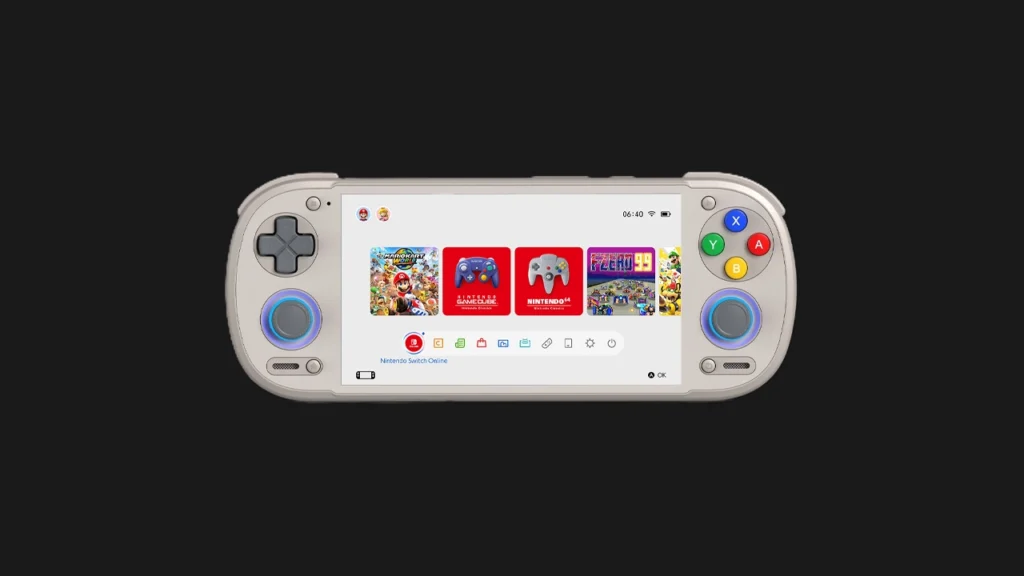
Eden is an open-source Nintendo Switch emulator for Android, Windows, and Linux. It emerged as the most actively developed Switch emulator in 2026 following the legal challenges that shuttered Yuzu and Ryujinx. Built by a team of former Citron and Yuzu contributors, Eden has rapidly become the recommended choice for Android Switch emulation.
What You Need Before Starting
Eden requires a few system files to operate. These are items you must legally obtain from your own Nintendo Switch console. Using files from third-party download sites violates Nintendo’s intellectual property — and can expose you to malware. Always source these from your own hardware:
- prod.keys — Encryption keys dumped from your Switch
- title.keys — Title-specific decryption keys
- Nintendo Switch firmware (version 17.0.0 minimum, 20.0.1 recommended)
- Your legally owned game backups (in NSP or XCI format)
Step 1: Download Eden
Download Eden only from its official GitHub releases page or the official project domain. Third-party mirrors often bundle malware. Always verify the SHA256 hash of your download against what’s listed on the official release page before installing.
Step 2: Install Nintendo Switch Firmware
Open Eden and navigate to System > Install Firmware. Select your firmware ZIP file. Eden will verify and install it automatically. This process takes 2-5 minutes. Do not close the app during installation. Firmware 20.0.1 is the recommended version for maximum compatibility in 2026.
Step 3: Add Your Keys
Navigate to Settings > Keys in Eden. Import your prod.keys and title.keys files. Eden will validate them — you’ll see a green checkmark if they’re correctly installed. Without valid keys, Eden cannot decrypt game files and most titles will fail to launch.
Step 4: Add Your Game Library
Go to Games > Add Game Folder. Point Eden to the directory containing your NSP or XCI game backups. Eden will scan and build your library automatically, pulling box art and metadata where available.
Step 5: Configure Graphics Settings
- API: Set to Vulkan (not OpenGL). Vulkan is faster and more accurate for Switch GPU emulation on Android.
- Resolution Scaling: Start at 1x (native). Increase to 2x only if your device handles 1x at 60fps consistently.
- ASTC Recompression: Enable this on devices with less than 8GB RAM to prevent memory-related crashes.
- GPU Accuracy: Normal mode for most titles. Switch to High only for games with visual glitches.
Performance Tips by Game Type
Open-world RPGs: Shader compilation stutters are normal on first boot. Let the game run for 10-15 minutes while collecting shaders before judging real performance.
Fighting games: Enable Accurate CPU Emulation for precise frame timing. This reduces performance by ~15% but eliminates input-lag inconsistencies.
Platformers: These are the most stable category. Most run at full 60fps on Snapdragon 8 Gen 2 devices right out of the box.