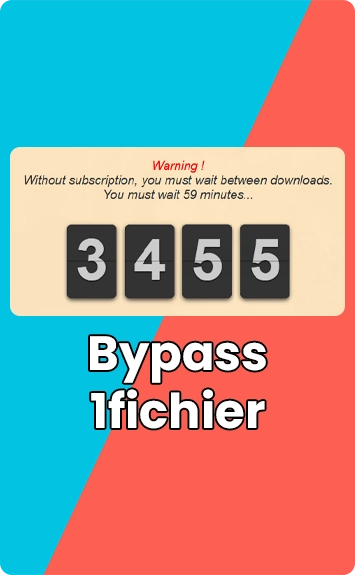
1fichier is a popular file hosting platform, but it comes with one notable annoyance: mandatory waiting times before you can download files. Depending on the file and your account type, that wait can stretch anywhere from a few minutes to several hours — not ideal when you’re trying to grab something quickly.
The good news is there are reliable ways around it. This guide covers three methods to bypass the 1fichier waiting time and get straight to your download.
Method 1: Airplane Mode (Mobile Devices)
1fichier enforces waiting times by tracking your IP address. On a mobile device, toggling Airplane Mode forces your carrier to assign you a fresh IP — effectively resetting the timer.
Step 1: Enable Airplane Mode on your device and wait a few seconds.
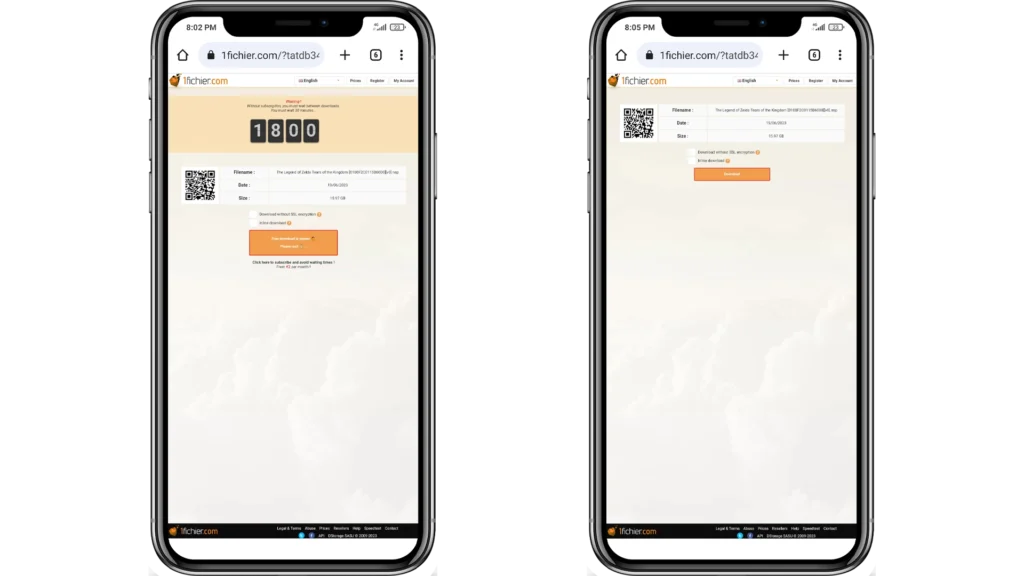
Step 2: Disable Airplane Mode to reconnect with a new IP address.
Step 3: Refresh the 1fichier download page — the waiting time should be gone.
Limitation: This method works best for smaller files. Mobile data limits and storage constraints make it less practical for large downloads. For those, use Method 2 instead.
Method 2: Enable/Disable Network Connection (PC)
The same IP-reset logic applies on PC. Disabling and re-enabling your network adapter forces your router to assign a new IP address, clearing the wait timer on 1fichier.
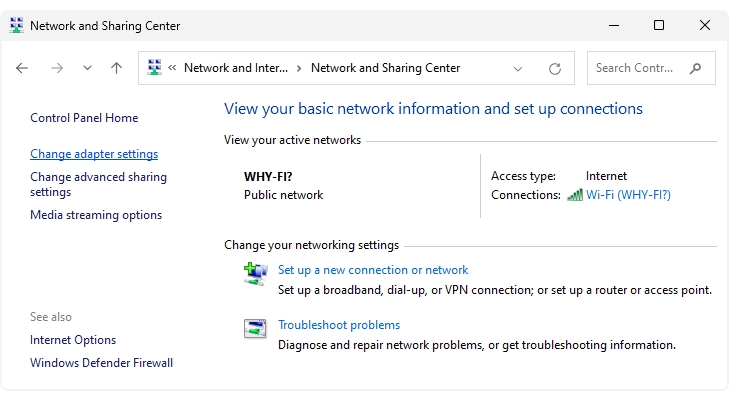
Step 1: Open Control Panel and navigate to Network and Internet → Network and Sharing Center.
Step 2: Click Change adapter settings on the left side.
Step 3: Right-click your active connection (Wi-Fi or Ethernet) and select Disable.
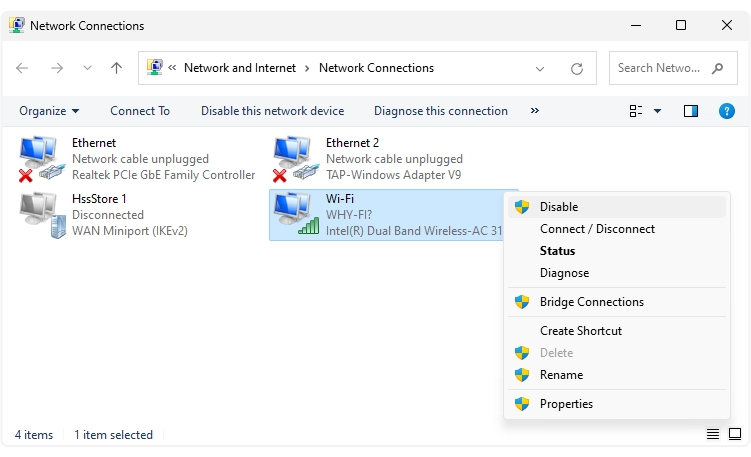
Step 4: Right-click it again and select Enable to restore the connection.
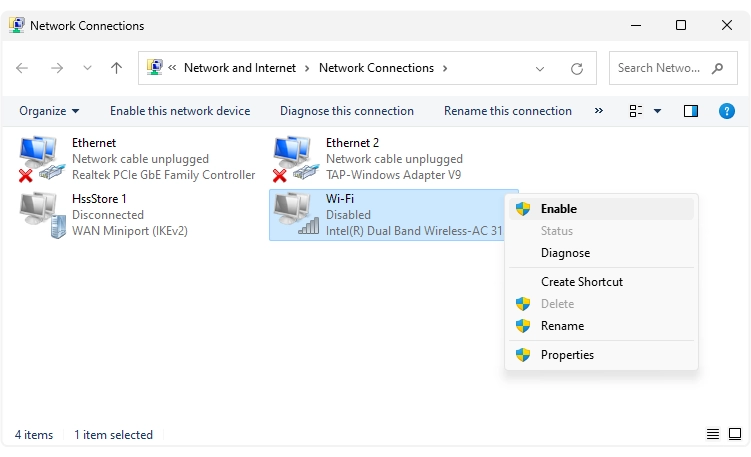
Step 5: Refresh the 1fichier download page — the timer should be cleared.
Alternative: Simply power your Wi-Fi router off and back on. This achieves the same result for most users, though it won’t work if your ISP has assigned you a static IP address.
Method 3: UltraSurf VPN Extension (Most Reliable)
If neither of the above methods works for you, this one will. Most VPNs don’t bypass 1fichier’s timer — but the UltraSurf Security, Privacy & Unblock VPN Chrome extension does, with one important catch: the timing of when you disconnect matters. Follow these steps carefully.
Step 1: Install the UltraSurf Security, Privacy & Unblock VPN extension from the Chrome Web Store and click Add to Chrome.
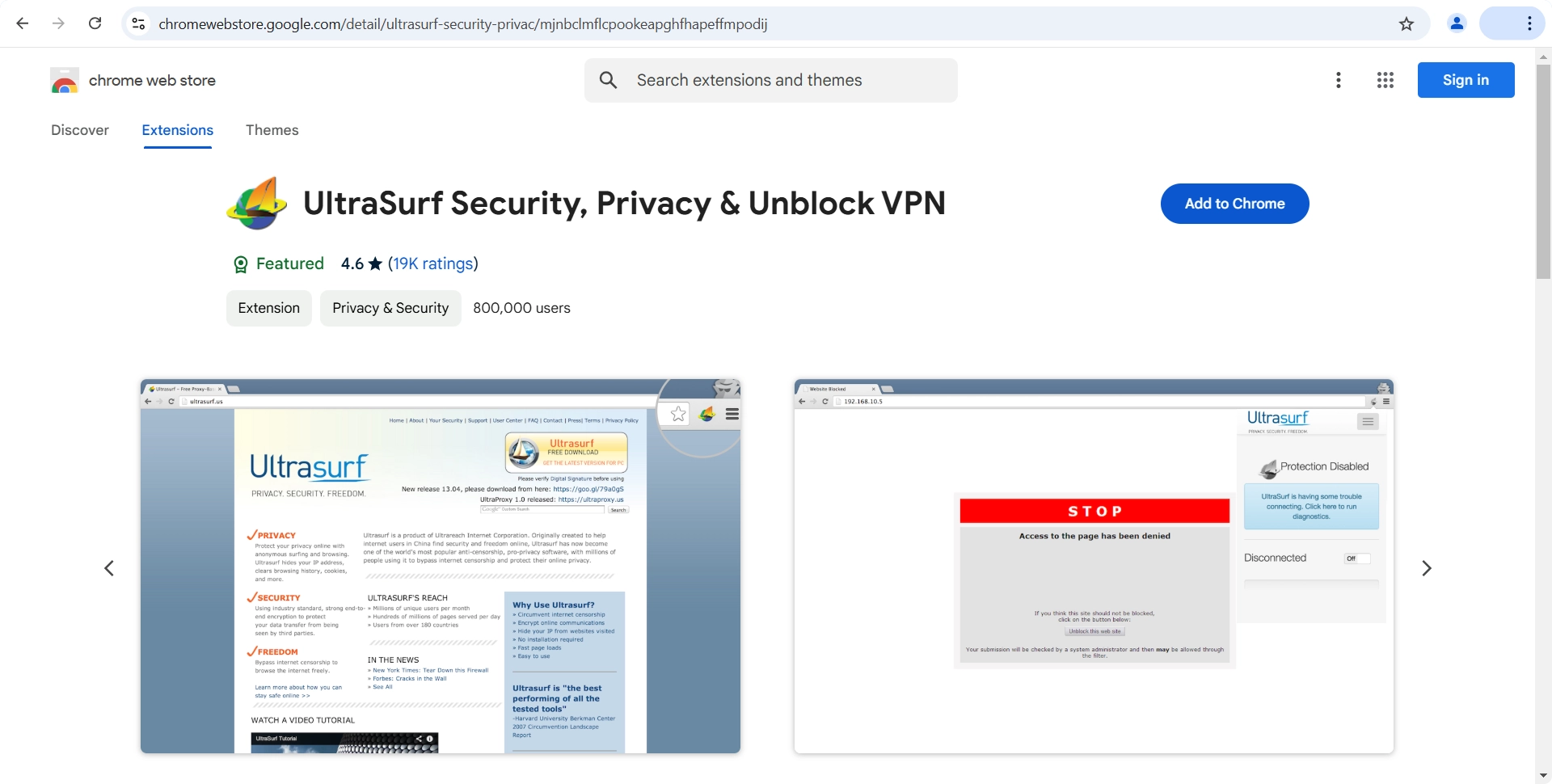
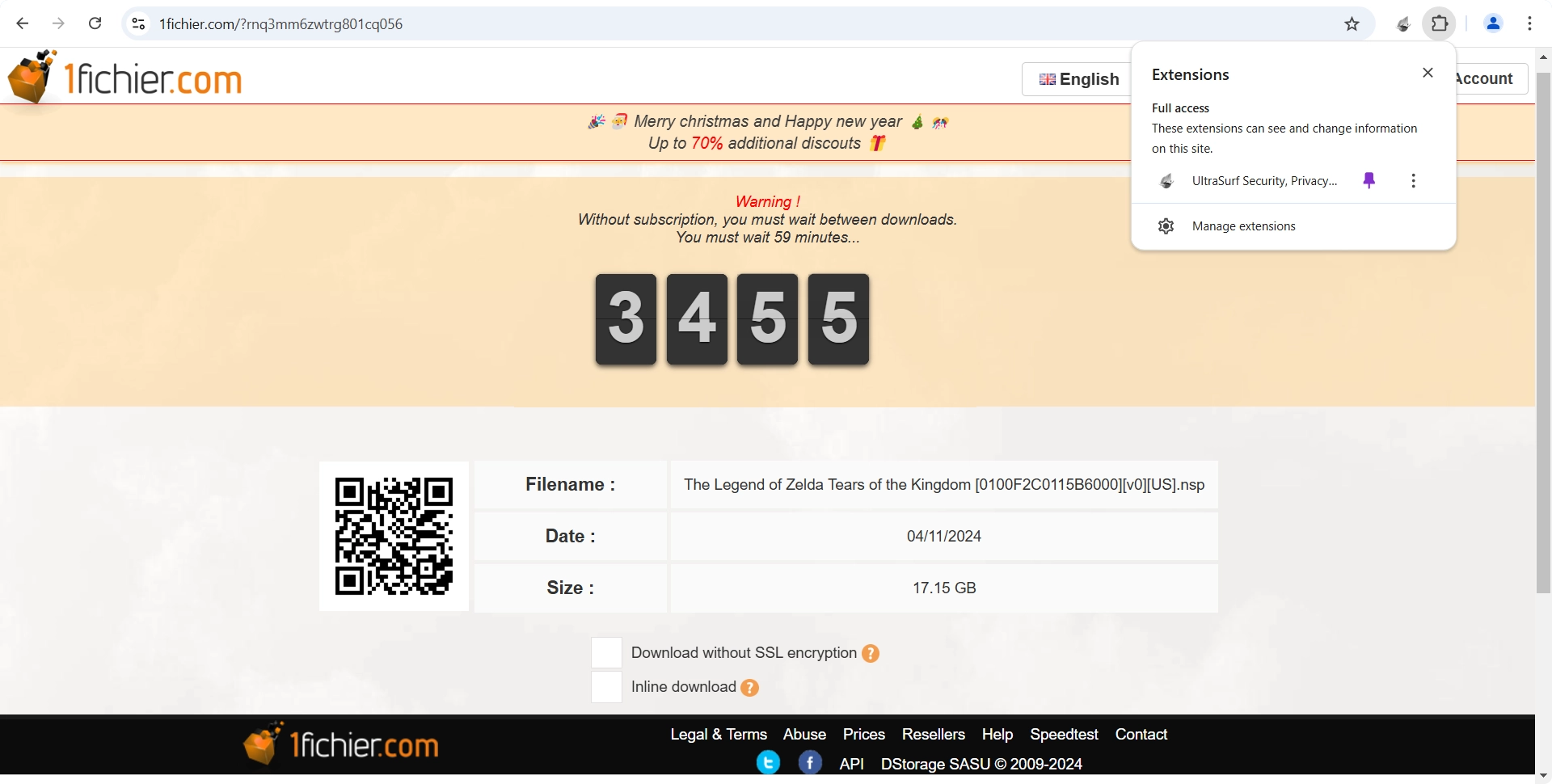
Step 2: Click the puzzle icon in the top-right corner of Chrome to find the extension. Pin it for easier access.
Step 3: Click the UltraSurf icon and toggle it on. It will show Connected once active. Close any new tab it opens.
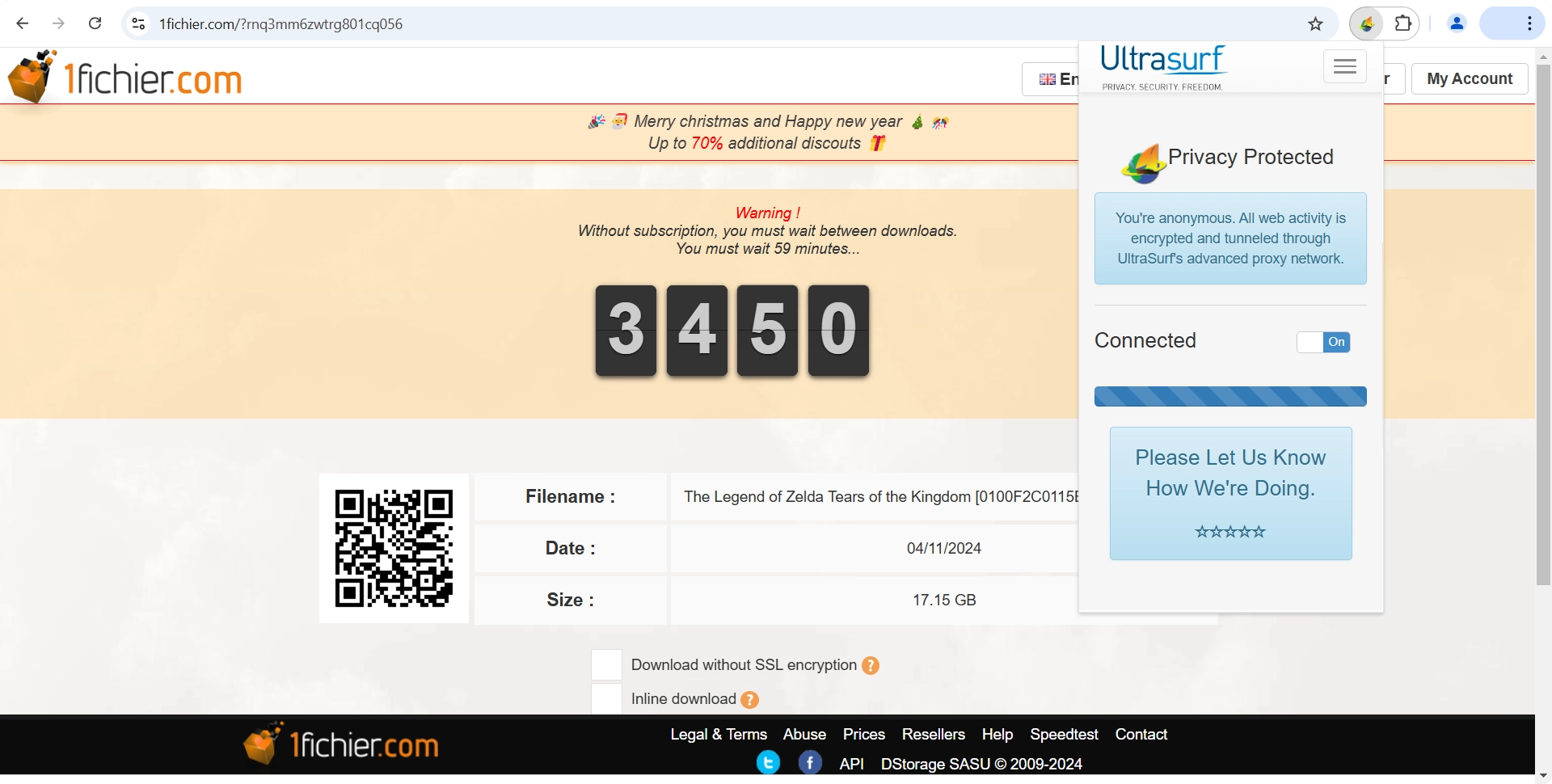
Step 4: Refresh the 1fichier page — the timer will be gone. Do not click Download yet.
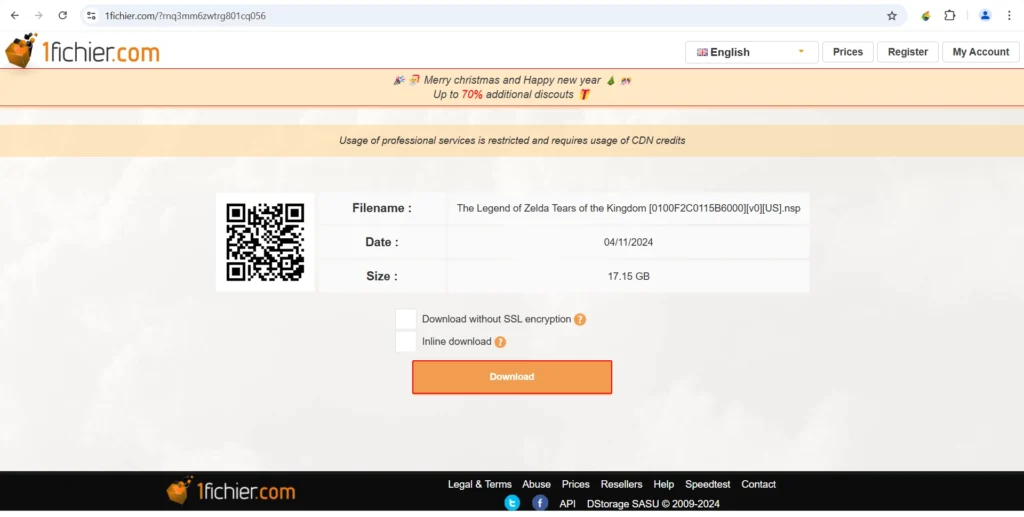
Step 5: Click the Download button. A “Click here to download the file” button will appear. Do not click it yet.
Step 6: Click the UltraSurf icon again and turn the toggle off to disconnect. Immediately after, click “Click here to download the file.” Your download will start without any issues.
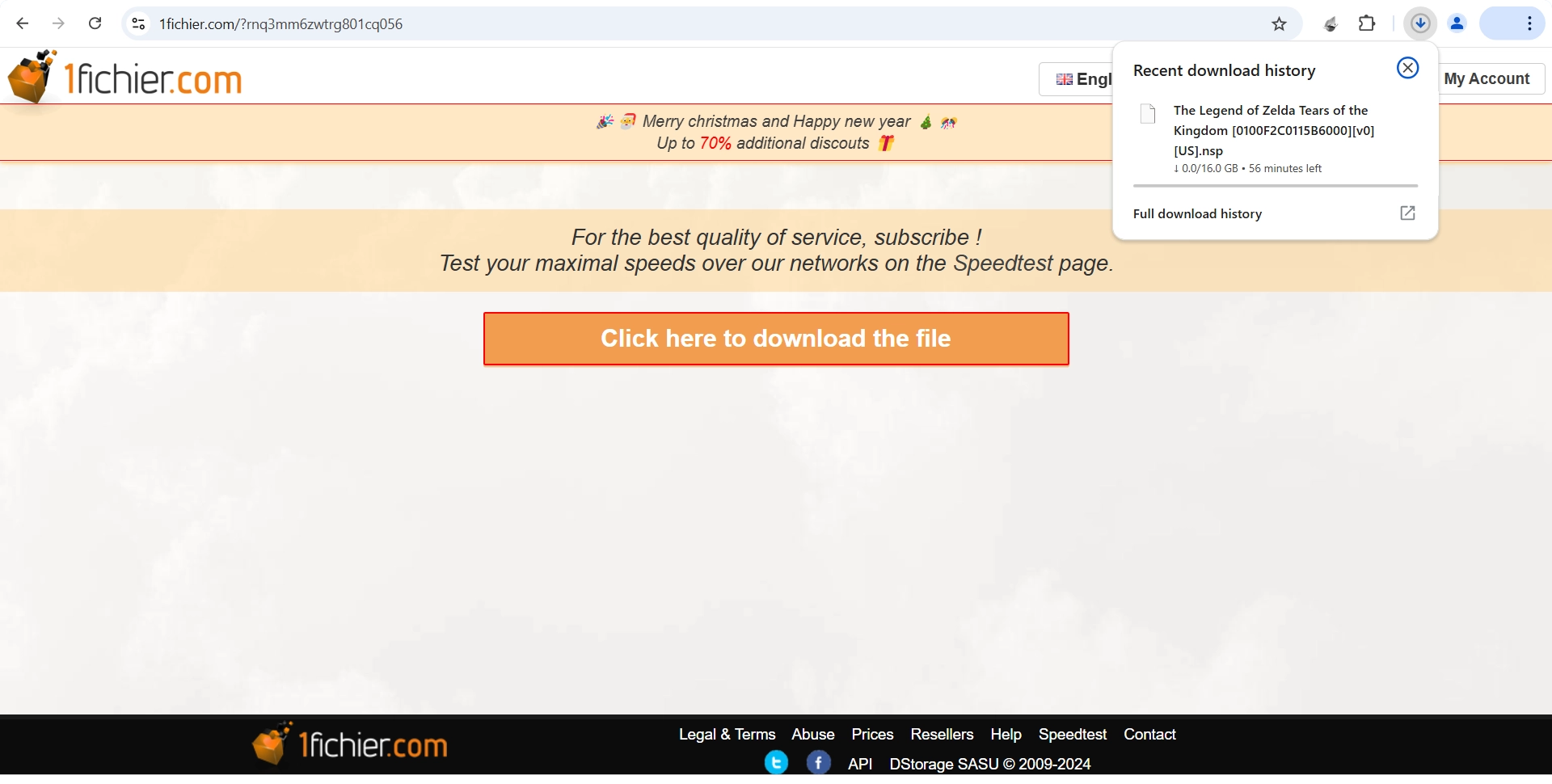
Why disconnect before downloading? Downloading through the VPN active connection can slow speeds significantly or cause the download to fail. Disabling it right before the file starts ensures full download speed on your regular connection.
Final Words
Dealing with download timers is one of those small frustrations that adds up quickly — especially when you’re trying to grab multiple files in a single session. The three methods covered in this guide give you reliable ways around the wait, whether you’re on mobile or PC.
For most users, Method 3 using UltraSurf will be the most consistent and effective option. Just remember to follow the disconnect step carefully — it’s the part most people miss, and it’s what makes the method actually work.
If you’re downloading frequently enough that these workarounds feel like a hassle, it might be worth considering a 1fichier premium account for uninterrupted access. Otherwise, bookmark this guide and come back to it whenever the timer shows up.
Got a question or running into an issue with one of the methods? Drop it in the comments below — happy to help.
Frequently Asked Questions (FAQ)
Why does 1fichier have a waiting time in the first place?
1fichier uses waiting times to manage server load and encourage users to upgrade to a premium account. Free users are subject to download queues and cooldown periods between downloads, while premium subscribers get instant, unrestricted access.
Is bypassing 1fichier’s waiting time legal?
These methods work by resetting your IP address or routing your connection through a VPN — neither of which is inherently illegal. However, it does go against 1fichier’s terms of service, so use these methods at your own discretion.
Why isn’t the Airplane Mode method working for me?
This method only works if your mobile carrier assigns a new IP address each time you reconnect. Some carriers use static or semi-static IPs, which means toggling Airplane Mode won’t result in a new IP. In that case, try Method 2 or Method 3 instead.
Why do I need to disconnect UltraSurf before the file downloads?
Keeping the VPN active during the actual download can significantly reduce your download speed or cause the transfer to fail altogether. Disconnecting immediately after clicking the download button lets the file transfer over your regular connection at full speed.
Will these methods work if I’m downloading multiple files?
Yes, but you’ll need to repeat the IP reset process for each file. 1fichier tracks downloads per IP, so each new download session will trigger a fresh waiting period unless you reset your IP again beforehand.
Is there a permanent fix to avoid waiting times on 1fichier?
The only permanent solution is upgrading to a 1fichier premium account, which removes all download restrictions entirely. If you download files from 1fichier regularly, a premium subscription is worth considering for the convenience alone.